


What Microsoft Teams bot development covers
Aranv provides Microsoft Teams bot development for US businesses that run on Microsoft 365. We build Teams AI assistants, approval bots and alert bots for personal chats, group chats and channels that answer from SharePoint and your business systems while respecting the sign-in and permissions your staff already have.
We build the bot as a Teams app: a manifest, a bot registration and the service that handles chats, mentions and card actions. Microsoft’s Teams SDK, the renamed Teams AI library, and the Microsoft 365 Agents Toolkit cover scaffolding and local testing, and we follow the guidance current at build time.
Answers come from Microsoft 365 data through Microsoft Graph or from documents indexed as on our RAG and knowledge search page. For the model we often use Azure OpenAI, so model calls run under your own Azure subscription and region settings.
A Teams bot from question to card
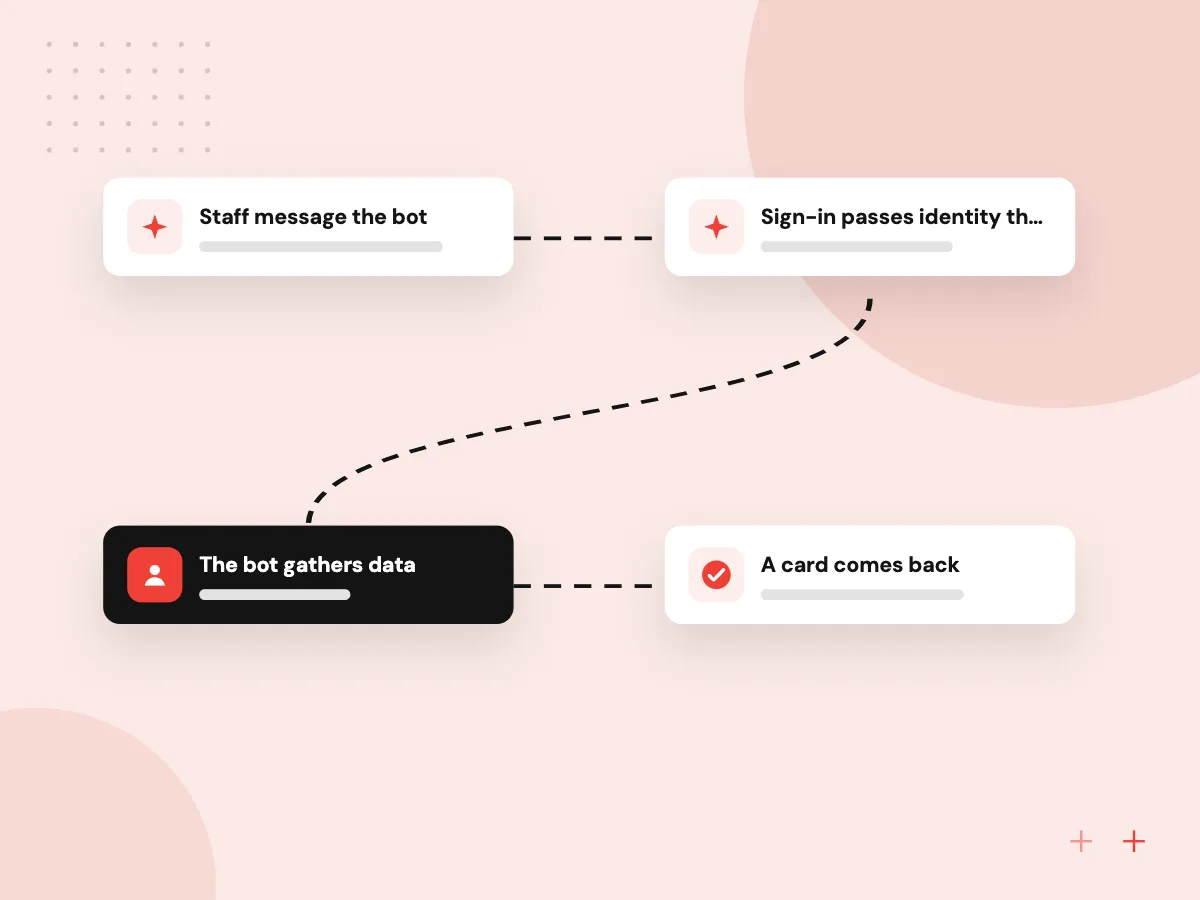
What happens when staff message the bot
- 01 Staff message the bot A personal chat, a channel mention or a card button starts the request.
- 02 Sign-in passes identity through Single sign-on tells the bot who is asking, so permissions follow that user.
- 03 The bot gathers data SharePoint files, Microsoft Graph or your own systems are queried for that person.
- 04 A card comes back An Adaptive Card shows the answer, its source and buttons for the next step.
Each bot ships as a Teams app package that your Microsoft 365 admin reviews and assigns to the right groups.
Teams apps and AI assistants we build
A good first bot is tied to a request your staff already send by email or chat several times a week.
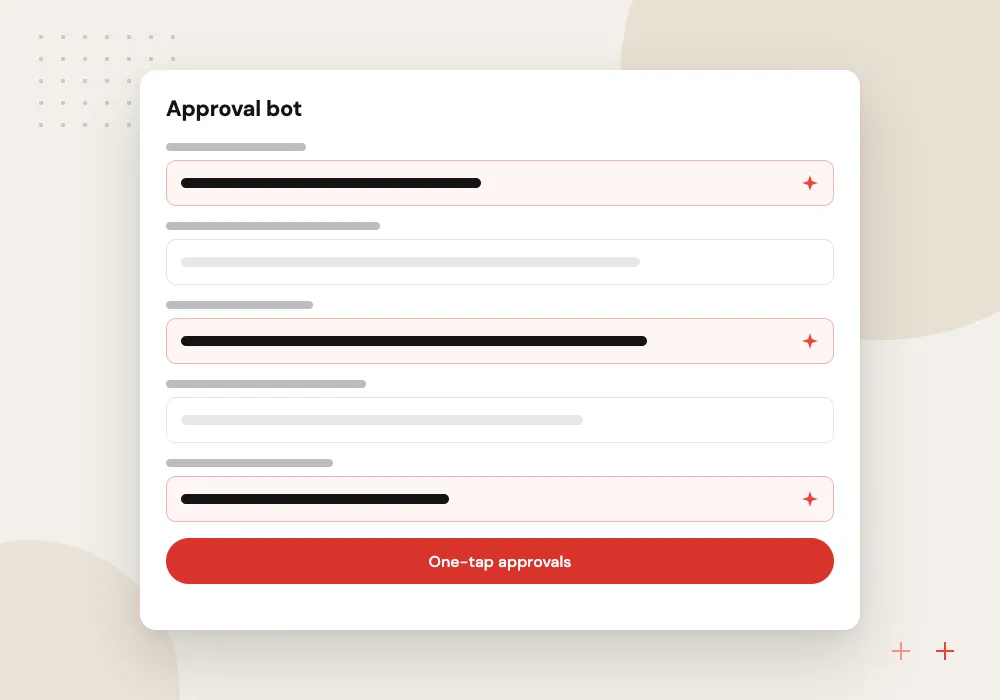
Approval bot
Purchase requests, time off or discount approvals arrive as cards with approve and reject buttons, and each decision is written back to your system.
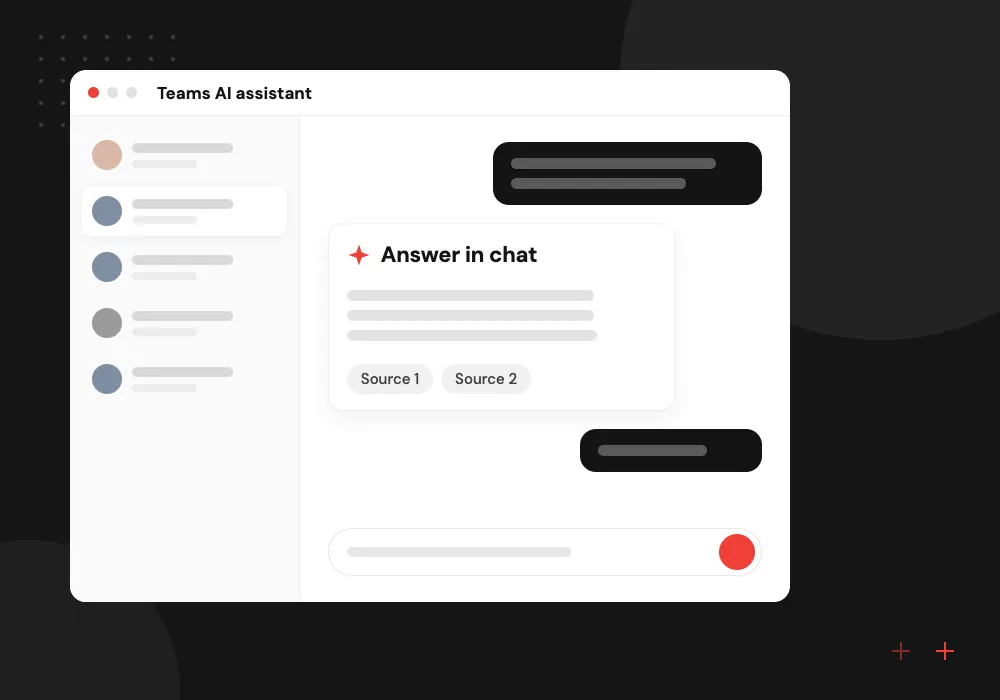
Teams AI assistant
Employees ask about HR policy, IT steps or project documents and get answers drawn from SharePoint and OneDrive files they are allowed to open.
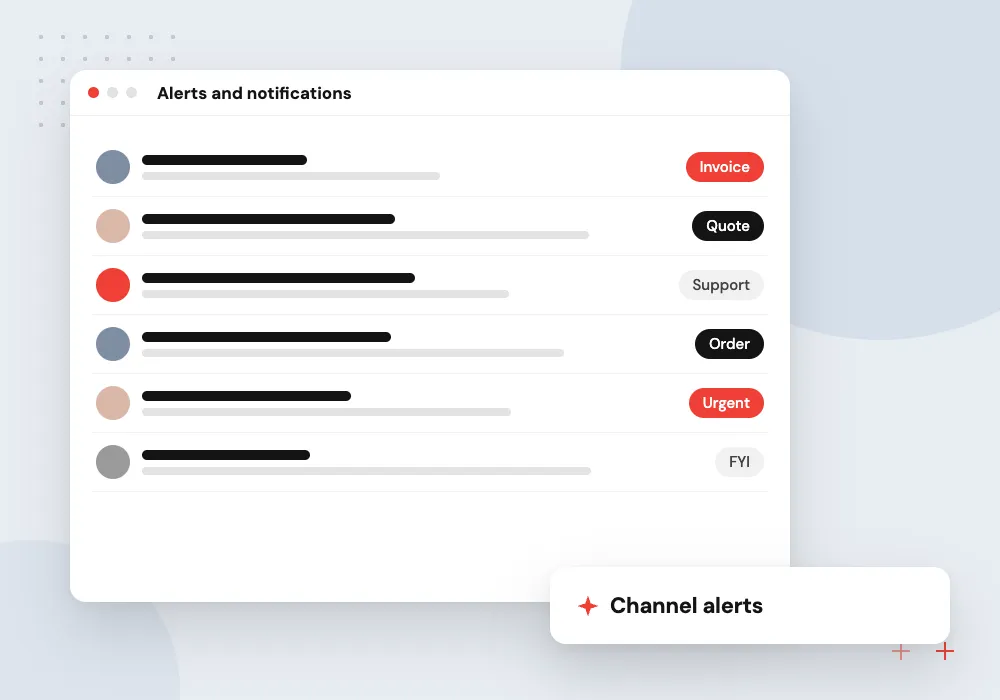
Alerts and notifications
Order exceptions, failed payments or overdue tickets post to the right channel with the key details and a link to act on them.
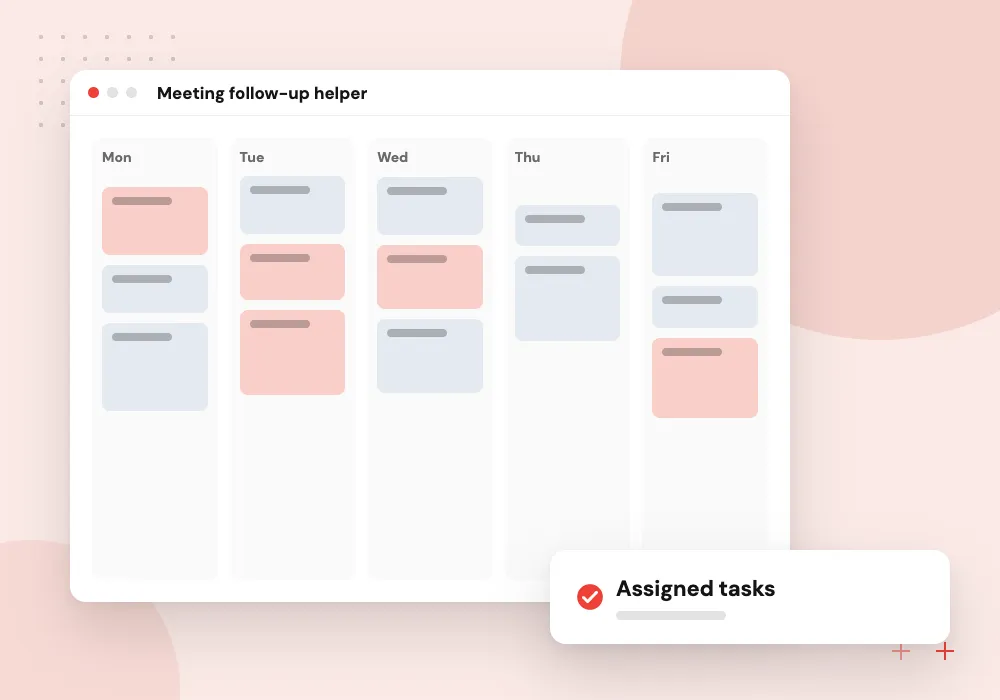
Meeting follow-up helper
After a meeting, the bot drafts a summary with owners and due dates from the transcript, where your policy allows it, and creates the tasks.
Approval and notification bots
Many Teams projects are less about chat and more about getting a decision from the right person quickly. We build bots that post a card when an order, expense or quote needs sign-off, record who approved it and when, and update your ERP, CRM or finance system straight away.
What we do
- Adaptive Card approval flows
- Reminders for pending decisions
- Write-back to source systems
- Channel alerts with links
- Audit log of each decision
Data access and answer checks
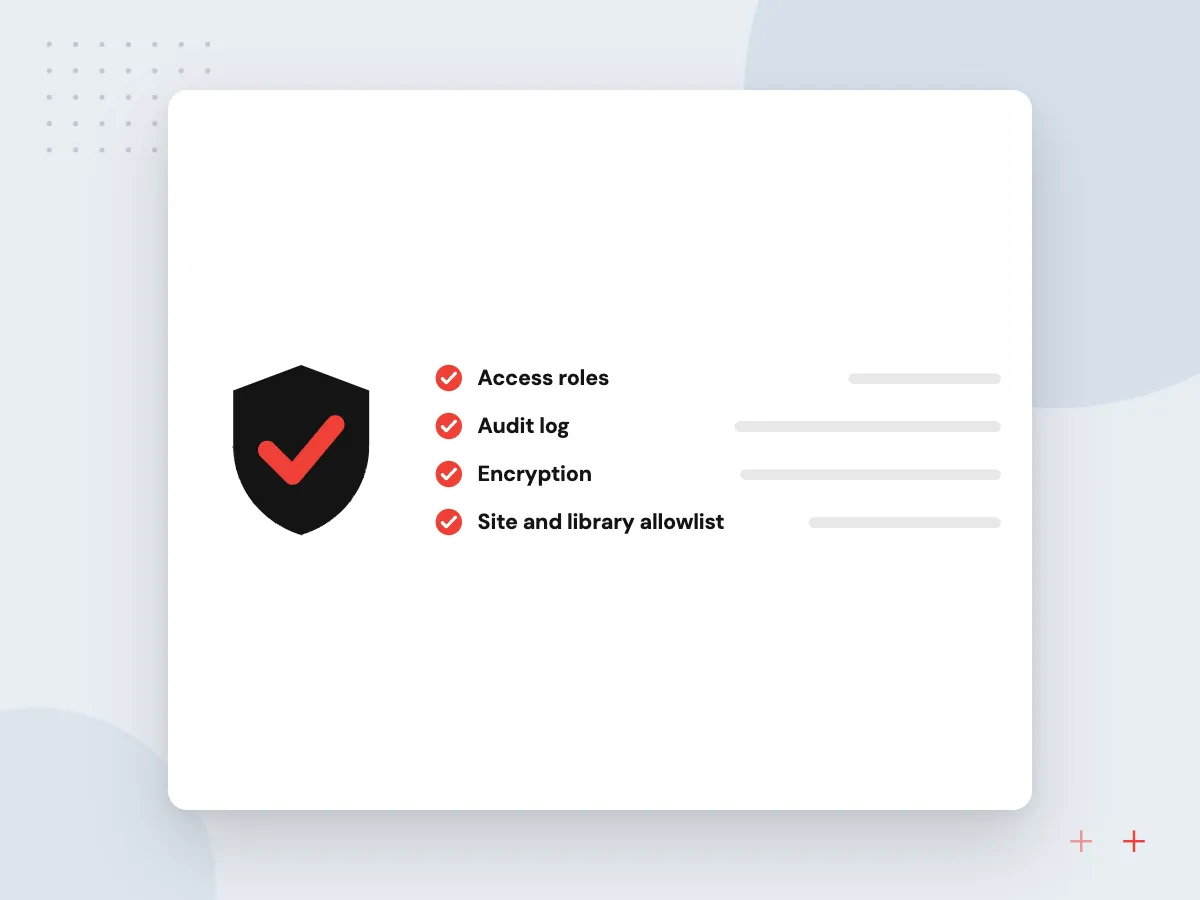
An assistant inside Teams sits close to sensitive files, so we decide early which sites, libraries and systems it may search. Answers name the file used, test questions are rerun after each change, and your admin can see usage and remove the app from any group.
What we do
- Site and library allowlist
- User-level search through sign-in
- Rerun test questions
- Usage reports for admins
- App removal by group

How we approach a project
If business users want to build and edit agents without code, Copilot Studio development may be the better route, and we will tell you. When the bot has to act across several systems, we design it as described under AI agent development.
Microsoft’s rate limit guidance for Teams shapes how alert bots reach many people at once. We queue and retry messages so a busy morning does not drop notifications.
How we work
- Permissions follow the signed-in user
- One decision per card
- Admin-approved app packages
Our Process
-

Choose the request to move
We review the emails and chats one team sends most often and pick the request that moves into Teams first.
-

Agree permissions with IT
Your Microsoft 365 admin reviews the Graph permissions, the sign-in setup and which groups receive the app.
-

Build and test in a dev tenant
Cards, commands and answers are tried in a developer tenant or test team before anyone in production sees them.
-

Publish to your app catalog
The admin uploads the package, we watch usage and errors, and the next request type is planned from staff feedback.
Why Aranv for Teams bots
Built on Microsoft 365 sign-in
The bot knows who is asking through single sign-on, so we never keep a second user list or work around the permissions you manage in Entra ID.
Cards people act on
We design each card around one decision and the facts needed to make it, so staff approve or reply in Teams instead of opening three other systems.
Queues for busy moments
Alerts and broadcasts go through a queue with retries and backoff, which keeps the bot inside Microsoft’s limits on heavy days.
Your tenant, your package
The registration, code and hosting live in your Azure and Microsoft 365 accounts, and you receive the manifest and setup notes to manage it yourself.
Planning Microsoft Teams Bot Development?
Book a 30-minute conversation with the team that would build it.
Microsoft Teams bot FAQs
-
What does Microsoft Teams bot development cost?
Price is driven by how many conversation and card flows you need, which systems the bot reads or writes, whether it needs single sign-on and Graph permissions, and model usage if AI answers are involved. After a short discovery we write an estimate split so the first request type can go live on its own.
-
Should we build a custom Teams bot or use Copilot Studio?
Copilot Studio suits agents that business users will maintain themselves with connectors and Power Automate. A custom Teams bot fits when you need your own model, complex logic, tight control of logs or links to systems without connectors. Starting in Copilot Studio and moving parts to code later is also a sound path.
-
Can a Teams AI assistant see files a user cannot open?
It should not, and we design it so it cannot. With single sign-on the assistant searches on behalf of the signed-in user, so SharePoint and OneDrive permissions apply. Where we index documents ourselves, we store access lists with each one and filter results before the model sees them.
-
Do we need Microsoft 365 Copilot licenses for a Teams bot?
No. A custom Teams bot runs as a Teams app with its own hosting and model account, so it does not depend on Microsoft 365 Copilot licenses. If you already hold those licenses, we can also look at extending Microsoft 365 Copilot instead of building a separate bot.
-
Who maintains the Teams app after launch?
Our team can keep handling fixes, SDK updates and new features, or we hand the code, manifest and setup notes to your IT staff. Microsoft revises its Teams tooling from time to time, so every project comes with a short upgrade checklist.

Let’s talk about your next step
Contact Aranv to discuss your workflow, current tools, and goals. Meet with our team or send an inquiry.
Book a meeting with our team
Choose an available date and time for a 30-minute conversation about your project.
Tell us about your project
Share a few details so we can discuss a useful next step.
Prefer email? sales@aranv.com